
Getting Started with OpenPhone
This guide provides a comprehensive walkthrough for beginners looking to establish a professional business phone system with OpenPhone. We will cover essential setup steps, team collaboration features, and best practices for managing your virtual phone lines efficiently. Our aim is to help you integrate OpenPhone seamlessly into your daily operations.
Pre-Setup Considerations for OpenPhone
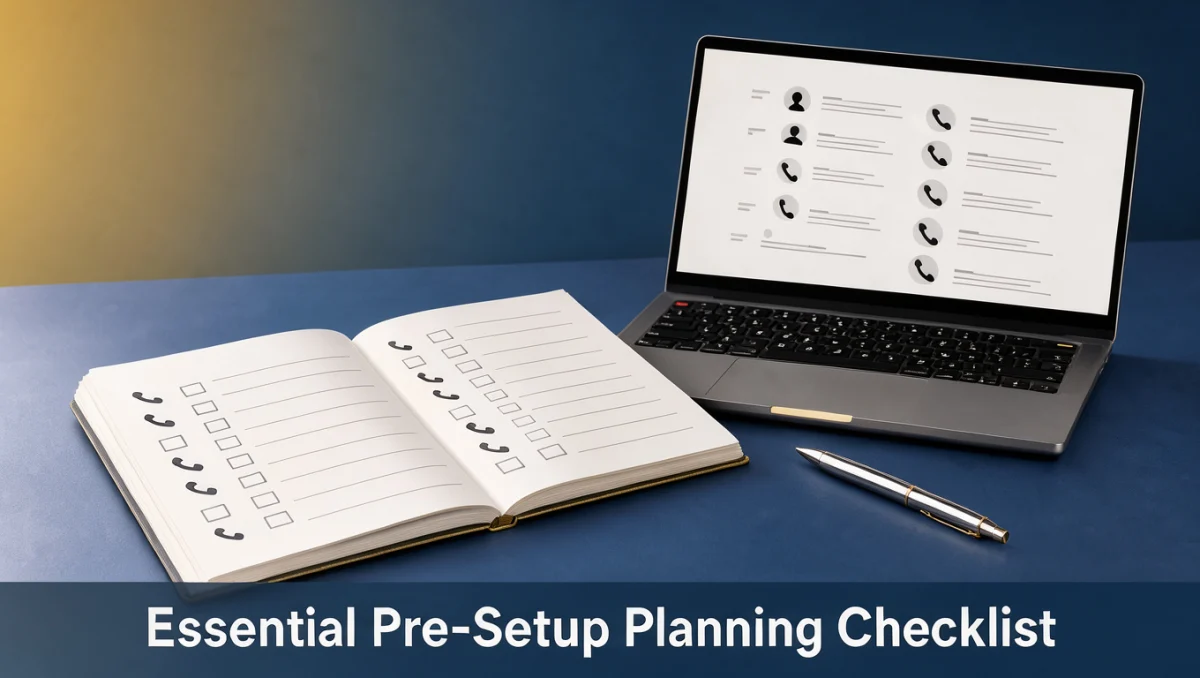
Before diving into the configuration, it’s crucial to prepare your essential business assets. This preparation ensures a smooth rollout and prevents delays. Key areas to address include identifying which existing phone numbers you might want to transfer or if you need to acquire new regional numbers. Integrating a phone system effectively into your workspace means making it a core part of your operational rituals, not just an isolated tool. Consider how this system fits into the broader Collaboration & Productivity landscape.
| Preparation Task | Objective | Recommended Action |
|---|---|---|
| Number Strategy | Decide between porting existing lines or generating new local numbers | Audit previous carrier bills and gather account validation paperwork |
| Team Directory | Identify users who require calling privileges and voicemail delegation | List all team members who handle inbound prospect and client calls |
| Business Hours | Establish expectations for availability and after-hours call routing | Draft weekly operating schedules, lunch coverages, and holiday policies |
| Voicemail Scripts | Ensure consistent professional tone across customer greetings | Write scripts for primary greetings, holiday hours, and internal team transfers |
Additionally, familiarize yourself with any regional regulations concerning business messaging to ensure compliance and avoid potential delivery issues. Checking official documentation for these requirements beforehand is a wise step.
OpenPhone Setup Workflow for Beginners
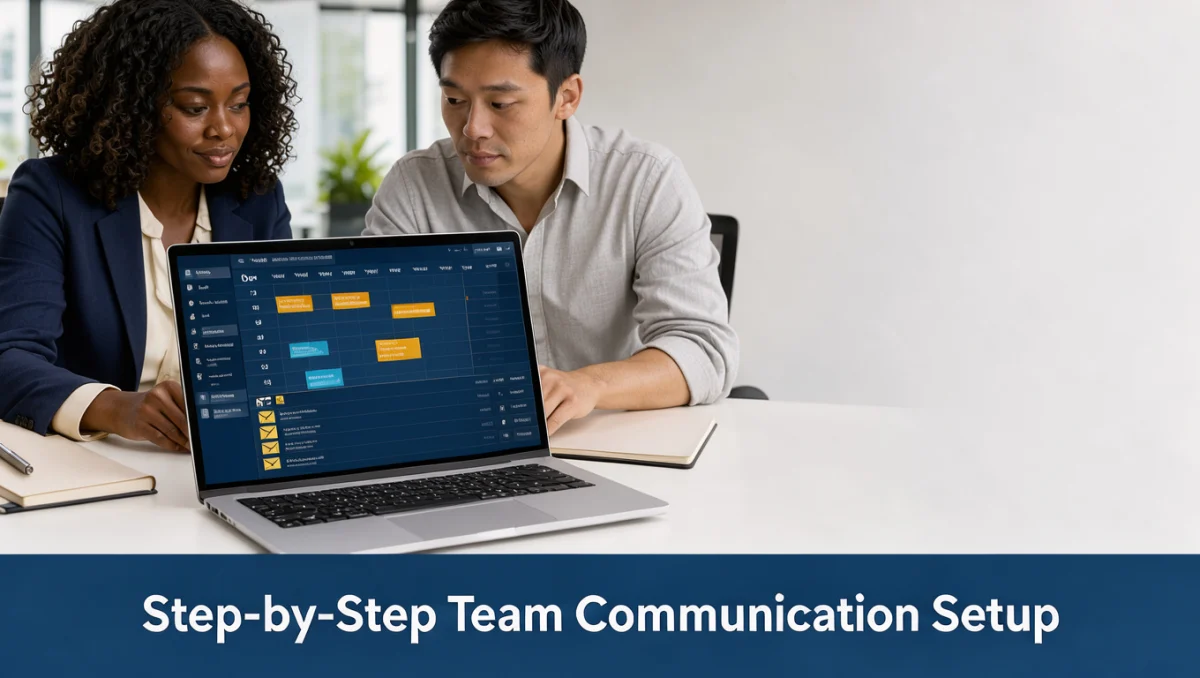
Follow this sequential workflow for an organized and stable calling environment right from the start. This openphone tutorial for beginners is designed for ease of execution.
Step 1: Selecting Your Primary Business Number
Choose your main regional or toll-free number. Assign a clear label within the admin console to help your team differentiate between various lines, such as general inquiries or technical support. This step is vital for defining caller identity clearly.
Step 2: Configuring Operating Schedules and Greetings
Set your official business hours and define how calls should be handled during and outside of these times. Prepare and upload professional audio recordings for your main greeting and voicemail messages, providing callers with necessary information when live support isn't available.
Step 3: Organizing Shared Communication Inboxes
Assign team members to shared lines for collaborative coverage, like sales or billing inquiries. Shared inboxes enable multiple colleagues to view and manage incoming texts and voicemails from a single interface, preventing duplicate efforts.
Step 4: Centralizing Contact Records
Import your existing client data efficiently, either through file uploads or manual entry. Implementing consistent naming structures and adding relevant operational notes ensures any team member answering a call has essential caller background information.
Step 5: Establishing Internal Communication Habits
Train your team to use internal notes and mentions within OpenPhone to discuss customer threads, rather than relying on separate chat applications. This practice preserves valuable institutional knowledge within the contact timeline.
Daily Communication Best Practices
Implementing daily communication standards ensures your virtual phone system enhances response times. Clear operational guidelines are key to maximizing the effectiveness of business communication software.
- Maintain Shared Inbox Ownership: Designate a point person for each shared number to ensure timely acknowledgment of all incoming messages and voicemails.
- Standardize Contact Tagging: Use consistent tags or labels for incoming inquiries to help colleagues quickly filter and prioritize urgent issues from routine ones.
- Document Call Summaries: Add brief notes to caller records immediately after complex calls to maintain a clear history for subsequent team interactions.
- Schedule Regular Availability Updates: Encourage team members to update their status when in meetings or finishing shifts to prevent unanswered call transfers.
To further enhance your workflow, explore OpenPhone's integration capabilities. Check the official OpenPhone integrations directory to see how call logs can sync with your existing CRM software and operational databases.
Common Pitfalls to Avoid During Setup
Steer clear of frequent onboarding mistakes to prevent missed inquiries and incorrect line routing. New administrators sometimes overlook fundamental telephony settings amidst the excitement of adopting a new platform.
| Common Mistake | Operational Risk | Corrective Habit |
|---|---|---|
| Neglecting Carrier Verification | Text messages may face carrier blocking or delayed delivery | Complete brand verification steps outlined on the official vendor website |
| Overcrowding Shared Lines | Notifications create alert fatigue without clear response ownership | Limit shared line assignments to staff directly handling that channel |
| Vague Voicemail Greetings | Callers hang up without leaving actionable contact details | Explicitly prompt callers for their name, order reference, and callback window |
| Ignoring Notification Schedules | Staff experience notifications outside of scheduled working hours | Guide team members to configure personal quiet hours on their accounts |
Ideal Users for OpenPhone
Understanding OpenPhone’s strengths helps determine if it aligns with your business needs.
Freelancers and Independent Consultants
Solopreneurs can establish professional boundaries by separating client calls from personal lines, controlling when business notifications ring without needing a second physical device.
Small Service Businesses and Local Agencies
Companies with customer-facing roles benefit greatly from shared inboxes, allowing available staff to respond to inquiries via text or call, thereby preventing missed appointments.
Distributed Startups
Remote teams across different regions can maintain a unified presence with shared regional numbers. Colleagues can collaborate on sales inquiries using internal notes for consistent customer support, regardless of working hours.
Frequently Asked Questions
How should teams prepare before porting an existing phone number?
Gather your recent billing statement, account number, authorized account holder details, and service address from your current provider. These details are crucial for a smooth transfer process.
What factors influence the total cost of virtual phone software?
Costs typically depend on the number of team seats, additional phone numbers, and usage charges for international calls or high-volume messaging. Review the official OpenPhone pricing page for detailed information.
How do shared phone numbers prevent duplicate client responses?
Shared numbers provide a unified view of message threads and call logs. When a team member responds or adds notes, colleagues can see the active interaction, preventing confusing double replies.
What administrative settings help maintain work boundaries for remote staff?
Administrators and team members can configure business hours and ‘do not disturb' schedules. Outside these windows, calls automatically route to voicemail, protecting personal time.
Conclusion
OpenPhone offers a modern solution for business communication, ideal for small companies and growing teams needing shared calling, coordinated messaging, and straightforward line delegation. It's an excellent choice for those moving away from fragmented phone hardware or personal mobile lines.
For those seeking more information or personalized assistance, consider exploring resources from Best Software Reviews for ongoing business software evaluations and comparisons.