
bestsoftwarereviews may earn a commission when you buy through links on this page, at no extra cost to you. This does not affect our ratings.
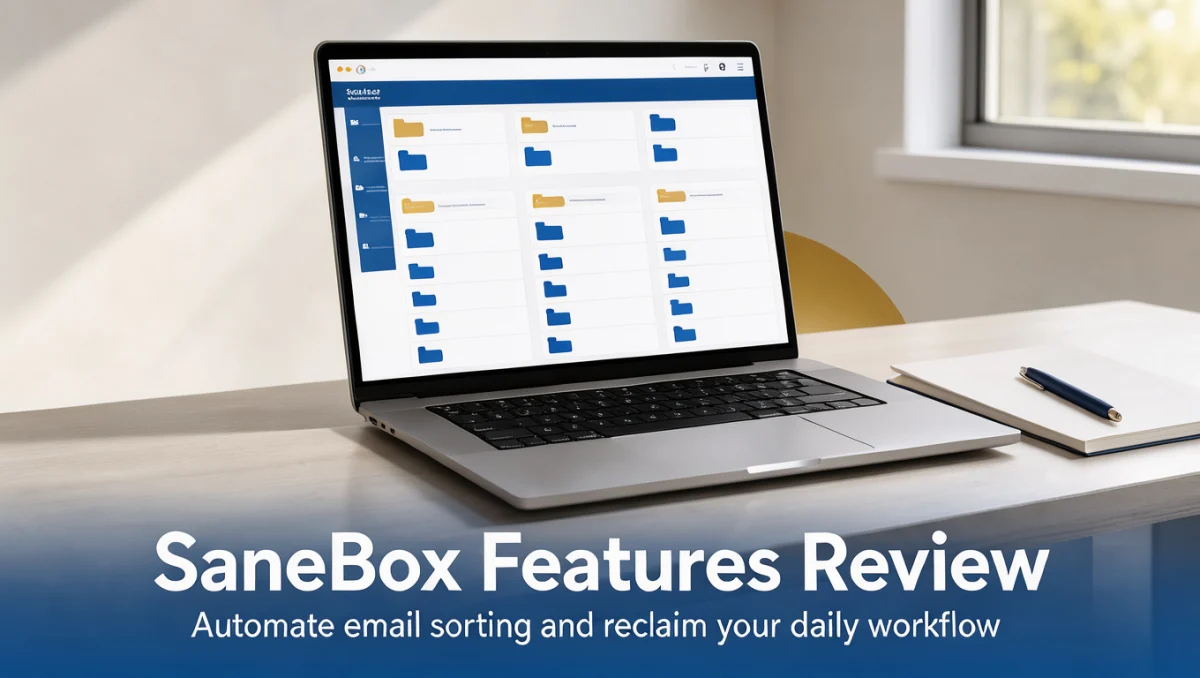
SaneBox features center on automated inbox triage, filtering incoming messages into dedicated folders so professionals can focus on primary communications. Evaluating how email filtering works across different mail clients helps knowledge workers decide whether an automated organization layer fits their daily routine. bestsoftwarereviews examines software solutions to clarify functional capabilities and buying considerations without marketing distractions.
Managing overflowing correspondence remains a constant challenge across modern workplaces. In this review, we break down core functional mechanisms, operational trade-offs, and critical verification points that prospective buyers should review before committing to an email management subscription.
Quick verdict: SaneBox receives an overall score of 7.9/10 for its focused email prioritization mechanics. It is best for busy professionals receiving high volumes of non-critical messages daily. It is not ideal for individuals who prefer manual folder management or teams needing native project boards inside their communication interface.
| Metric | Summary Details |
|---|---|
| bestsoftwarereviews score | 7.9/10 |
| Best for | Professionals handling heavy incoming message volumes seeking automated secondary inbox triage |
| Not ideal for | Users wanting manual categorization control or built-in project collaboration interfaces |
| Key strengths | Automated background filtering, non-intrusive folder mechanics, distraction deferral capabilities |
| What to check before buying | Review the official SaneBox subscription comparison page to confirm account connection allowances and custom folder rules |
1. How bestsoftwarereviews Reviewed SaneBox
This review looks at what SaneBox is built to do, who it serves, and how it compares with similar tools, using the seven bestsoftwarereviews criteria: features, ease of use, pricing and value, integrations, audience fit, support and competitive position. Plans, prices and limits change often, so we point out what to confirm on the official website before you buy. This article was researched and drafted with the help of AI tools, then reviewed and edited by the bestsoftwarereviews Editorial Team.
2. What is SaneBox and Who is it For
SaneBox operates as an automated email management service designed to filter non-urgent messages away from primary inboxes. The service integrates with standard email server protocols to organize incoming correspondence based on sender importance and past user interactions. Rather than replacing an existing email client, SaneBox works in the background of existing mail systems.
The service primarily targets independent professionals, business owners, executives, and agency managers dealing with chronic message overload. When daily correspondence mixes client requests, routine receipts, newsletters, and promotional updates, automated separation allows recipients to process priority work first while reviewing secondary items on a designated schedule.
For those researching solutions in the wider Collaboration & Productivity space, clarifying how an organization layer interacts with daily routines is essential. SaneBox addresses clutter at the server folder level rather than introducing a proprietary dashboard, making it practical for users who want to keep their existing mail software.
3. Core SaneBox Features and Capabilities
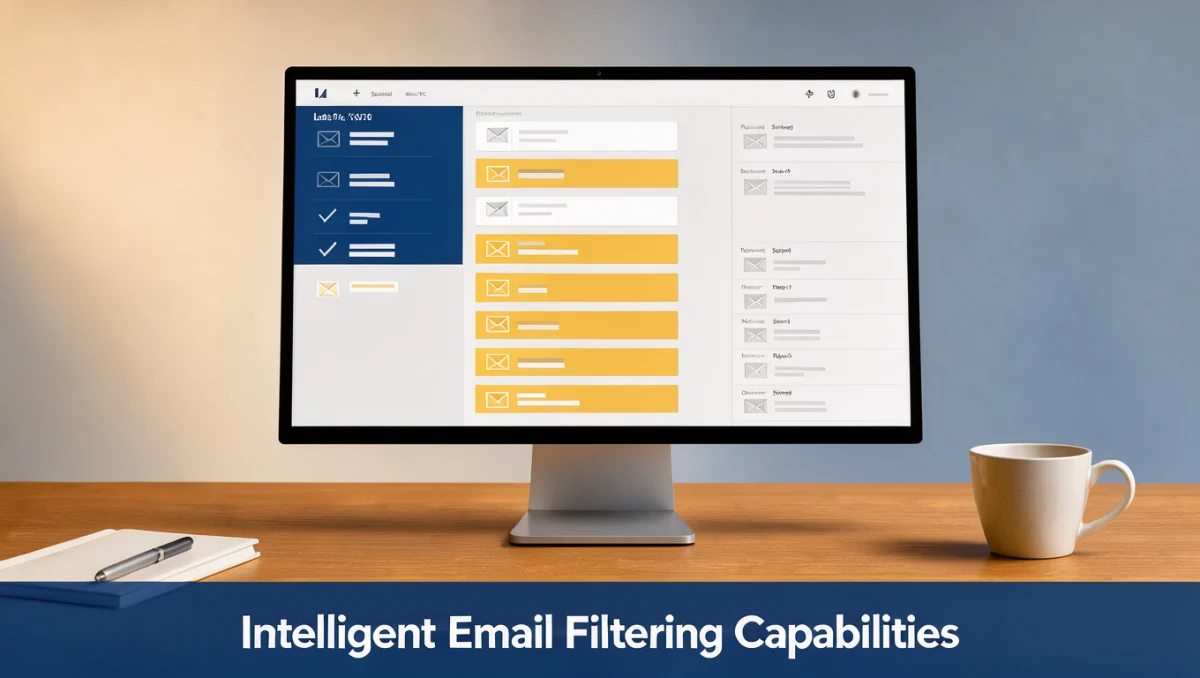
Examining sanebox features reveals how the tool applies rule-based filtering and automated sorting to standard email accounts. The platform concentrates on four primary functional areas designed to streamline inbox processing.
3.1. Automated Inbox Prioritization
Automated prioritization represents the foundational pillar of the service. Incoming mail is analyzed using historical sender interaction patterns, placing personal and urgent correspondence into the primary inbox while moving secondary messages into supplementary folders. Users train the sorting mechanism by dragging messages between folders, which updates future sorting behavior automatically.
3.2. Email Snoozing and Deferral
Deferral capabilities allow professionals to temporarily remove actionable messages from view until a more appropriate time. Messages moved to designated deferral folders reappear in the main inbox on future dates or during scheduled review periods. This keeps active task lists tidy without requiring separate reminder applications.
3.3. Unwanted Sender Filtering
Unwanted sender filtering provides a permanent method to discard unsolicited correspondence without repetitive manual unsubscriptions. Placing an unwanted message into the dedicated discarding folder ensures all subsequent communications from that address bypass the inbox entirely. This minimizes time spent cleaning recurring promotional updates.
3.4. Follow-Up and Reminder Tracking
Follow-up tracking ensures critical outgoing messages receive timely responses. By including specialized reminder addresses on outgoing correspondence, senders receive automated notifications if recipients fail to reply within specified intervals. This mechanism helps project managers maintain momentum across communication threads without manual tracking spreadsheets.
4. Ease of Use and Learning Curve
Getting started with email management software generally involves granting server access and learning folder habits. Because SaneBox relies on standard email folders, users do not need to learn a completely new interface. The initial transition involves monitoring sorted folders to ensure messages land in appropriate destinations.
Training the system requires moving misplaced messages to the correct folder, which allows the filtering algorithms to adapt to user preferences. Most professionals establish routine processing rhythms relatively quickly, though initial setup requires patience as historical communication patterns are processed.
Organizations with strict information governance policies should review data handling documentation on the official website before connecting administrative accounts. Assessing configuration settings during early onboarding prevents unwanted message deferrals during critical operational windows.
5. Pros and Cons
5.1. Core Advantages
- Works directly within existing email clients without requiring separate desktop or mobile installations.
- Automates folder sorting based on direct user behavior and simple drag-and-drop corrections.
- Provides dedicated deferral mechanisms that keep primary inboxes clean during focused work blocks.
- Reduces time spent processing promotional solicitations through permanent sender filtering.
5.2. Practical Limitations
- Requires continuous server-level permissions across connected email accounts to organize folders.
- Demands active monitoring during the initial training phase to prevent overlooked business messages.
- Does not include native team task collaboration boards or shared document editing workspaces.
6. SaneBox vs Similar Tools
Understanding where SaneBox fits requires contrasting its approach with alternative email productivity strategies. Many professionals weigh dedicated server filters against specialized email clients or inbox workflow extensions.
Dedicated email clients like Superhuman focus on keyboard shortcuts, speed, and integrated task interfaces, replacing the default email visual client entirely. In contrast, SaneBox works across any standard client by operating at the underlying server folder level.
Rule-based extensions and web-based email filters require manual setup of keyword filters and complex sorting criteria. SaneBox simplifies this by learning from user behavior, though buyers should evaluate whether automated sorting aligns with their personal control preferences. Prospective buyers can consult Best Software Reviews to examine broader productivity category frameworks.
7. Who Should Use SaneBox
7.1. Freelancers and Consultants
Independent professionals managing multi-client communications benefit from automated separation between immediate client inquiries and general vendor updates. SaneBox keeps project communications visible while grouping background reading for non-billable administrative hours.
7.2. Small Business Owners and Executives
Business operators receiving hundreds of inbound messages daily can isolate strategic operational conversations from supplier notifications. Delegating secondary filtering to background automation preserves focus for business development and personnel management.
7.3. Knowledge Workers and Marketing Specialists
Marketers subscribed to industry newsletters, competitor alerts, and analytical reports often experience cluttered inboxes. Background sorting allows these professionals to review research batches intentionally rather than suffering constant interruptions.
7.4. Who Should Consider Other Options
Professionals who receive low daily email volumes or those who maintain strict manual filing systems may find dedicated automated filters unnecessary. Furthermore, teams needing shared customer support inboxes or collaborative ticket routing should investigate specialized help desk platforms instead.
8. How to Choose the Right Plan
Subscription tiers for email tools typically vary based on the number of active email accounts connected and the specific folder tools enabled. Evaluating individual communication habits helps determine appropriate service requirements.
| What to Check on the Official Website | Why It Matters |
|---|---|
| Allowed account connections | Determines whether personal, consulting, and primary business inboxes can be managed simultaneously. |
| Included feature modules | Confirms whether advanced follow-up tracking and custom deferral folders fit your workflow requirements. |
| Subscription renewal terms | Ensures billing intervals match organizational expense policies and software evaluation cycles. |
| Folder limit rules | Clarifies how many specialized filtering folders can be active on a single email address. |
9. Frequently Asked Questions
How does automated email sorting adapt to changing communication priorities
Automated sorting algorithms adjust when users move messages between designated folders in their regular email client. Dragging an email from a secondary folder into the primary inbox signals that future communications from that sender warrant high priority. Consistent placement trains the underlying system over time.
What factors influence whether an inbox management subscription is necessary
Assessing daily incoming message volume and time spent manually sorting correspondence helps determine overall utility. Professionals spending extended periods clearing non-essential mail often benefit from automated sorting layers, whereas individuals receiving minimal daily mail can manage communications using standard manual rules.
How should buyers evaluate account connection requirements across multiple addresses
Prospective subscribers should catalog all active email addresses requiring automated organization before selecting a plan. Different subscription levels accommodate varying quantities of connected inboxes, making it important to confirm allowances on the official website to ensure all professional addresses receive coverage.
What steps ensure important messages are not missed during initial setup
Checking secondary sorting folders daily during the initial onboarding period ensures critical correspondence is promptly redirected. Moving any misplaced business emails back to the primary inbox reinforces correct filtering patterns, allowing the system to reflect accurate personal priorities.
10. Final Verdict
| Criterion | Score /10 | Reason |
|---|---|---|
| Features | 8.5/10 | Provides comprehensive automated folder sorting, message deferral, and follow-up tracking capabilities. |
| Ease of Use | 8.0/10 | Operates directly within familiar email applications without requiring separate interface adoption. |
| Pricing and Value | 7.5/10 | Delivers practical administrative time savings, though buyers must verify account connection allowances. |
| Integrations | 8.0/10 | Functions across standard email server protocols, supporting virtually any conventional mail client. |
| Audience Fit | 8.5/10 | Highly effective for high-volume email recipients seeking non-intrusive automated organization. |
| Support | 7.0/10 | Documentation outlines standard folder training, while users should confirm direct assistance options. |
| Competitive Position | 8.0/10 | Maintains a distinct server-level approach compared to proprietary email client replacements. |
Overall bestsoftwarereviews Score: 7.9/10
SaneBox delivers a practical and reliable approach to email organization by automating folder management behind the scenes. For busy executives, consultants, and knowledge workers battling chronic communication clutter, the platform offers meaningful productivity relief. Prospective subscribers should verify current feature allocations and account allowances on the official SaneBox website to select the ideal configuration for their 2026 workflow.
Readers with additional questions regarding email software selection are invited to contact our team at https://bestsoftwarereviews.net/contact/ or follow bestsoftwarereviews on LinkedIn at https://www.linkedin.com/company/bestsoftwarereviews/ for ongoing productivity tool evaluations.