
Understanding Vibe for Visual Collaboration
Effective visual collaboration requires understanding how digital workspaces support brainstorming, remote workshops, and planning. Teams adopting these tools often encounter challenges like workspace clutter, disorganized board hierarchies, and unclear permissions. We assess collaboration systems based on structural clarity, administrative ease, and actual workflow alignment, not just surface appeal.
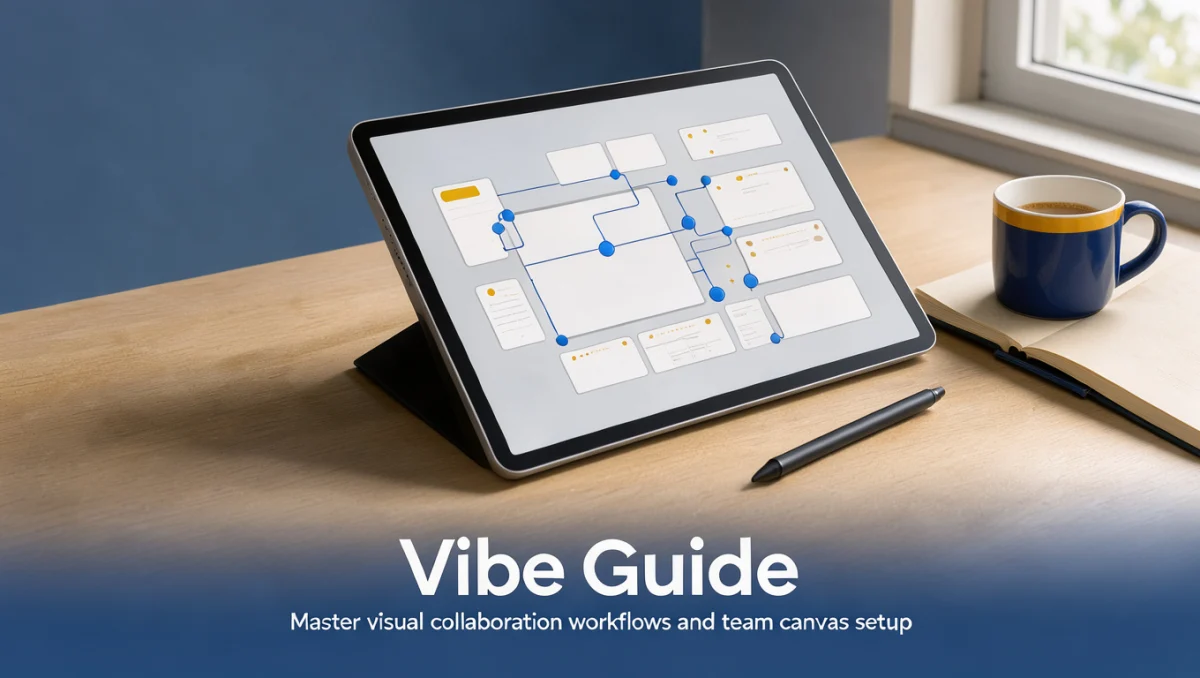
This platform focuses on interactive canvas use, persistent documentation, and multi-user ideation. A practical vibe guide helps project leads and educators align their coordination routines with digital tools before committing to subscriptions.
Quick verdict: Scoring 7.6/10 overall, this platform is ideal for distributed teams, facilitators, and educators needing shared visual spaces for interactive sessions. It's less suited for organizations requiring rigid linear databases or teams solely using spreadsheets without visual diagramming.
| Metric | Evaluation |
|---|---|
| Best Software Reviews Score | 7.6/10 |
| Best For | Distributed teams holding recurring visual workshops and collaborative mapping sessions. |
| Not Ideal For | Organizations needing structured databases without visual canvas requirements. |
| Key Strengths | Visual workspace organization, real-time board interaction, and shared canvas ideation. |
| Before Buying Checklist | Examine user administration limits, external sharing controls, and export options on the official website. |
Setting Up Your Visual Workspace Effectively
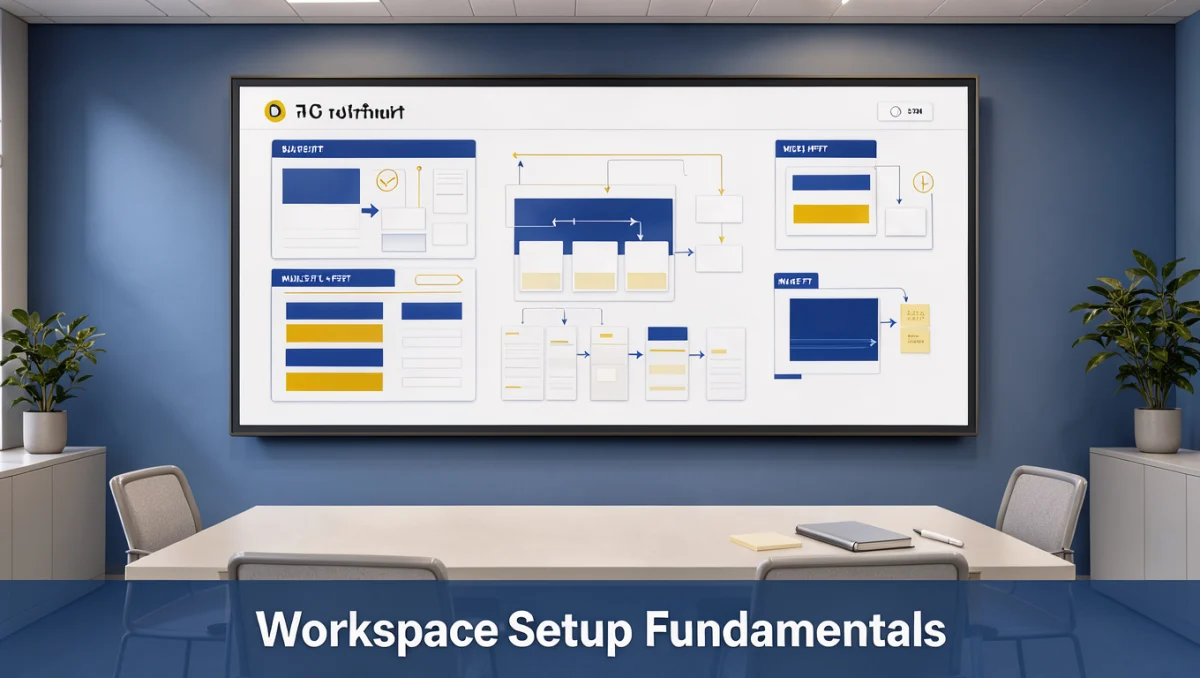
Before deploying a visual collaboration solution, define clear objectives for your digital canvas environment. These tools offer the most value when organizations distinguish between scratchpad brainstorming and permanent project records.
Without proper planning, workspaces can become chaotic collections of unorganized elements. Modern teams in the Collaboration & Productivity space need consistent information architecture to maintain alignment across different time zones.
Defining Canvas Ownership and Governance
Each shared canvas requires an owner responsible for templates, archiving, and access management. Without clear governance, multiple contributors editing a single canvas can lead to misplaced or modified information.
- Appoint facilitators to manage primary boards and clean up drafts.
- Implement standardized naming conventions for better discoverability across departments.
- Designate areas on canvas margins for unresolved questions during live sessions.
Auditing Security and External Participant Access
Organizations frequently collaborate with external partners or clients. Before hosting sessions, administrators must review external participant access to safeguard internal data.
Verify guest access and password protection policies on the official Vibe account management page, as sharing policies impact security compliance for external workshops.
Workflow Implementation for Collaborative Sessions

A structured workflow transforms blank digital canvases into efficient workshop tools. Following sequential phases ensures every team member understands their role during collaborative sessions.
Step 1: Establishing Information Architecture
Organize workspaces into logical project folders or team directories. Grouping boards by project milestones or departments prevents duplicates and saves time locating documentation.
Use structural framing elements to create clear visual boundaries within each board. Framing divides large canvases into distinct workshop exercises, presentation slides, or sprint backlogs for sequential navigation.
Step 2: Preparing Reusable Templates
Facilitators should prepare standardized frameworks before inviting team members. Pre-populating canvases with recurring templates like retrospective grids or customer journey maps minimizes downtime during live meetings.
Lock background elements and headers so contributors interact only with working cards, sticky notes, and text fields. This prevents accidental template deletion during fast-paced activities.
Step 3: Conducting Live Collaborative Exercises
During sessions, guide participants using color-coded inputs, timer blocks, and designated voting zones. Clear visual prompts prevent confusion from simultaneous edits on open canvas sections.
Synthesize contributor feedback into summary zones immediately after discussions. Documenting decisions next to raw ideas preserves context for asynchronous review.
Step 4: Archiving and Exporting Meeting Outcomes
After a workshop, convert active canvases into read-only reference documentation. Exporting summaries or locking final frames ensures historical sessions are tamper-free records.
Review official documentation to verify available export formats and resolution settings for seamless integration into corporate archives.
Sustaining Team Engagement on Shared Boards
Maintaining high engagement requires intentional habits and continuous upkeep. Visual collaboration systems thrive when teams treat canvases as living environments, not one-time displays.
Adopting Consistent Visual Shorthand
Establish clear visual standards so contributors instantly recognize card meanings and status indicators.
- Assign consistent sticky note colors to categories like risks, action items, or customer quotes.
- Use explicit visual connectors with directional arrows to trace process workflows.
- Maintain standardized legend boxes on canvas corners to orient new contributors.
Scheduling Routine Workspace Pruning
Digital canvases can expand indefinitely, leading to bloated file structures. Schedule monthly administrative reviews to archive completed project boards and consolidate redundant templates.
Pruning inactive workspaces keeps directories responsive, reduces cognitive load, and helps new hires navigate current priorities without sifting through obsolete drafts.
Common Pitfalls in Visual Workspaces
Teams often face friction transitioning from text documents to visual canvases. Identifying common implementation issues early saves administrative time and maintains participant enthusiasm.
Overcrowding Canvases Without Navigation
A frequent error is placing too many divergent projects on a single canvas without clear visual landmarks. When boards lack navigation, participants get lost, zoom out excessively, and struggle to find their work area.
Divide complex initiatives across separate boards linked by reference summaries rather than expanding a single canvas beyond manageable visual boundaries.
Neglecting Permission Levels for Diverse Audiences
Granting universal editing permissions can result in displaced assets, accidental deletions, and disorganized notes. Match user roles to responsibilities by assigning view-only access to broad audiences while reserving full editing for active collaborators.
Review the official Vibe permission matrix to confirm how viewing, commenting, and editing rights are configured across different account tiers.
Choosing the Right Subscription Plan
Selecting a plan involves balancing team collaboration volume with administrative control needs. Evaluating subscription structures against objective criteria ensures you choose an option supporting long-term growth.
| What to Check on the Official Site | Why It Matters | Who Needs to Review |
|---|---|---|
| Administrative seat structures | Determines total recurring overhead as team rosters expand. | Operations managers and department heads. |
| External guest sharing policies | Dictates if outside clients can participate without dedicated seats. | Agency leads and workshop facilitators. |
| Canvas retention and storage rules | Affects historical archive safety and ongoing document access. | Compliance teams and project archivists. |
| Access permission controls | Protects sensitive strategic assets from unauthorized modification. | Team administrators and security officers. |
Frequently Asked Questions
How should teams structure visual boards for remote onboarding?
Structure onboarding boards into linear, sequential zones guiding new hires through company resources, introductions, and setup tasks. Locking background templates and using clear visual markers aids independent exploration without altering established assets.
What administrative controls should project leads verify before team rollout?
Project leads should verify role assignment flexibility, single-sign-on availability, and board-level sharing restrictions on the official vendor site. Understanding administrative oversight ensures sensitive strategic plans remain restricted to authorized internal members.
How can facilitators prevent board clutter during large group workshops?
Facilitators can prevent clutter by pre-building framed activity sections, pre-assigning labeled participant spaces, and locking foundational visual elements. Directing contributors to specific color-coded zones keeps ideation organized during intensive brainstorming.
Should an organization replace standard documentation tools with visual canvases?
Visual canvases complement, rather than replace, formal text-based records and structured databases. Teams achieve the strongest outcomes using visual workspaces for synthesis, diagramming, and workshops while maintaining formal policies in standard repositories.
Final Thoughts on Vibe
Vibe offers an adaptable environment for visual thinking, team alignment, and collaborative facilitation. Organizations prioritizing real-time creative engagement, spatial diagramming, and iterative workshops will find value in its structured canvas capabilities. Before finalizing your software choice, consult the Best Software Reviews team or the official Vibe website to verify current plan limits, administration rules, and sharing permissions.
| Criterion | Score /10 | Reason |
|---|---|---|
| Features | 7.8/10 | Provides flexible canvas structures, sticky notes, visual connectors, and presentation framing for team ideation. |
| Ease of Use | 8.2/10 | Offers an approachable visual interface allowing non-technical contributors to participate with minimal friction. |
| Pricing and Value | 7.2/10 | Verify current subscription tiers and seat calculations on the official site to assess ongoing return on investment. |
| Integrations | 7.1/10 | Review the official integration directory to confirm workflow compatibility with existing document suites. |
| Audience Fit | 8.1/10 | Serves remote facilitators, design teams, and workshop leaders relying on spatial interaction for daily collaboration. |
| Support | 7.2/10 | Check available customer service channels and onboarding guides on the vendor portal. |
| Competitive Position | 7.6/10 | Maintains a competitive presence in the visual whiteboard market against established tools. |
Overall score: 7.6/10