
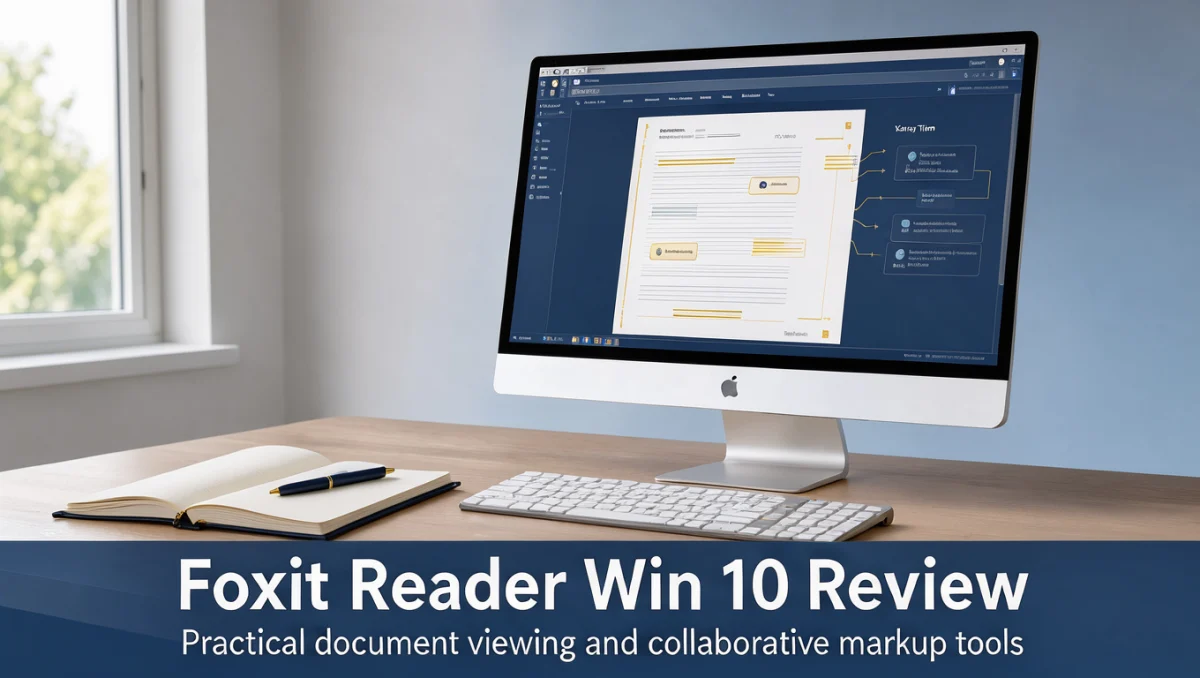
Foxit Reader for Windows 10 stands out as a dedicated desktop application designed for seamless interaction with portable document format files. In today's digital landscape, efficient document processing is crucial for daily operations. Evaluating tools like Foxit Reader helps individuals and teams ensure their software meets the demands of reading, annotating, and managing essential documents.
Understanding how a PDF reader handles features like markup, digital forms, and rendering accuracy is key to avoiding operational inefficiencies. A thorough review of foxit reader win 10 provides critical insights into file compatibility and long-term value before integrating it into your workflow.
Understanding Foxit Reader's Role and Audience
Foxit Reader is a versatile application for opening, viewing, printing, and annotating PDF files. It is engineered to provide clear file rendering and effective annotation tools, catering to professionals who handle electronic paperwork daily. The software aims to simplify the review of administrative forms, research papers, and collaborative feedback sharing.
This tool is particularly beneficial for knowledge workers, students, and corporate staff who frequently interact with contracts, study materials, and technical documentation. For organizations looking to standardize their Collaboration & Productivity tools, a reliable PDF reader that offers quick file opening and standard markup capabilities is essential for review cycles.
It's important to note that Foxit Reader focuses on document consumption, markup, and form interaction rather than complex document creation or design. Recognizing this distinction helps users determine if its capabilities align with their operational needs or if more advanced document creation programs are required.
Key Capabilities of PDF Document Viewers
The effectiveness of document viewing software hinges on its core capabilities, which dictate how efficiently teams can review and exchange feedback on vital business records. Examining these fundamental aspects guides buyers in understanding the application's performance in everyday documentation tasks.
Seamless Document Navigation and Viewing
Effective document navigation features allow users to quickly browse multi-page files, access structural bookmarks, and jump between specific sections without delays. Robust search functions enable rapid discovery of keywords, clauses, or data across extensive reports. Features like thumbnail panels and multi-tab layouts enhance the ability to review complex documents alongside related project files.
Annotation and Collaborative Markup Tools
Reviewers depend on annotation utilities to convey clear feedback during editorial and approval processes. Standard tools such as text highlighting, strikethrough, underlining, sticky notes, and freehand drawing pens are indispensable. Integrated annotation features allow teams to centralize feedback directly within the source document, eliminating the need for separate communication logs.
Interactive Form Filling and Data Submission
Form completion remains a critical function for administrative, academic, and corporate documentation. Interactive fields support text input, checkbox selections, and signature placeholders, enabling users to complete standard paperwork digitally. Reliable form tools reduce the reliance on printing and streamline routine data collection across various departments.
Document Printing and Export Functionality
Accurate document printing ensures that electronic files are translated faithfully onto physical paper or virtual print formats without margin distortion. Users can select specific page ranges, adjust scaling, and choose output modes (monochrome or color) to meet internal archival standards. Clean export options help maintain the integrity of document layouts when transferring files between different workstations.
User Experience and Learning Curve
The Foxit Reader interface adopts a design familiar to standard productivity software, featuring organized ribbon menus and collapsible sidebars. Users accustomed to common office suites will find the navigation intuitive, with document controls, zoom functions, and comment lists placed in easily recognizable locations. This consistent structure simplifies onboarding for large teams deploying the software.
The learning curve primarily involves exploring secondary annotation tools and customizing display preferences. Navigating through technical documents, adjusting scroll settings, and managing comment layers require minimal practice. For a smooth user experience, consistency in interface design is paramount in reducing support requests during widespread adoption.
Advantages and Disadvantages
A balanced perspective on functional benefits and product limitations is essential for setting realistic expectations for office deployments.
Key Strengths
- Rapid document rendering facilitates swift navigation through lengthy reports and guides.
- A comprehensive suite of annotation tools supports clear editorial feedback through highlights, notes, and shape markups.
- Dependable interactive form processing simplifies digital administrative workflows and paperwork submission.
- The familiar ribbon-style menu organization minimizes training requirements for staff across departments.
Areas for Consideration
- Limited advanced page manipulation compared to dedicated publishing software, requiring separate tools for extensive layout revisions.
- The density of features in menus might be overwhelming for casual users; this can be mitigated by configuring simplified viewing options.
- Commercial terms and deployment parameters can vary, necessitating administrators to confirm licensing details on the developer's website before purchase.
Comparison with Similar PDF Tools
Evaluating PDF viewing software involves understanding their market positioning. Adobe Acrobat Reader, a long-standing industry standard, is often chosen for its legacy compatibility within corporate infrastructures. Sumatra PDF appeals to users seeking a lightweight, fast-opening solution, often omitting deeper collaboration features.
Nitro PDF offers a comprehensive document lifecycle solution, combining reading utilities with conversion and publishing suites for businesses. Foxit Reader distinguishes itself by balancing responsive performance with rich annotation and form-handling capabilities, making it ideal for teams needing practical markup tools without the complexity of heavy authoring packages.
Who Benefits Most from Foxit Reader?
Matching software capabilities to specific workplace needs ensures smooth daily operations for various roles.
For Corporate Administrative Teams
Office administrators managing invoices, employee records, and compliance forms will find the form handling and annotation tools highly beneficial. Standardized viewing software enables departments to review contracts, add procedural notes, and manage paperwork efficiently without format corruption.
For Students and Academic Researchers
Scholars reviewing research papers, textbooks, and lecture notes can leverage structured bookmark navigation and text highlighting. The ability to annotate excerpts and export marked-up summaries supports thorough revision practices without requiring complex software.
For Legal and Professional Service Consultants
Consultants reviewing extensive agreements and policy documents can utilize powerful search functions and margin notes to track key contractual terms. Collaborative markups facilitate internal consensus before sharing final recommendations with external partners.
Alternatives for Specific Needs
Creative directors, graphic designers, and print publishers focused on creating magazines or complex marketing materials will require dedicated vector authoring suites. Users who only need to view occasional single-page notices may find that default operating system viewers suffice.
Choosing the Right Licensing Plan
Selecting appropriate productivity software involves assessing organizational scale, functional requirements, and deployment costs. Use the following evaluation framework when researching document software options.
| Consideration | Importance |
|---|---|
| Deployment type and workstation compatibility | Ensures the installation package aligns with IT policies and existing operating environments for seamless rollout. |
| Commercial licensing terms | Guarantees organizational compliance across individual workstations, multi-user offices, and enterprise networks. |
| Annotation and markup needs | Verifies that team members have the necessary commenting, highlighting, and drawing tools for daily collaboration. |
| Form management features | Determines if staff can reliably complete, save, and submit interactive administrative forms. |
| Support and maintenance resources | Confirms the availability of help resources and technical documentation for addressing workstation issues. |
Frequently Asked Questions
Is basic document viewing software sufficient for an office environment?
Assess whether your staff primarily reads, completes forms, and comments on documents, or if they need to reconstruct text, edit layouts, and reorganize pagination. For tasks centered on reading, signing, and reviewing, standard reader software often meets operational needs without added complexity.
What should buyers know about organizational licensing policies?
Review how vendors define commercial use, user installations, and network deployment rights. Understanding whether access is linked to individual machines or organizational accounts prevents compliance issues and aids in accurate IT budgeting.
Why is form handling crucial when selecting a PDF viewer?
Interactive forms are vital for HR, accounting, and compliance workflows. Software that accurately captures text, supports standardized inputs, and preserves form data upon saving prevents record loss and reduces the need for printing.
How should enterprises plan software rollouts to multiple workstations?
Consult vendor installation guides for silent installer options, configuration parameters, and centralized update management. Verifying administrative deployment capabilities before purchasing licenses ensures a smooth, uniform installation across company computers.
Final Assessment
Evaluating document management utilities involves balancing reading speed, functional versatility, and long-term deployment costs. Here’s how Foxit Reader performs:
| Criterion | Score /10 | Justification |
|---|---|---|
| Features | 8.5 | Offers practical reading tools, responsive search, text markups, and reliable electronic form completion. |
| Ease of Use | 8.5 | Features a familiar ribbon interface that minimizes employee training time for workplace adoption. |
| Pricing and Value | 8.0 | Requires careful review on the vendor site to align commercial terms with organizational budgets. |
| Integrations | 7.5 | Primarily focuses on standalone document interaction; confirm compatibility with internal storage systems. |
| Audience Fit | 8.5 | Aligns well with the daily needs of administrative staff, students, and corporate knowledge workers. |
| Support | 7.5 | Provides documentation and help channels that users should review for expected response times. |
| Competitive Position | 8.2 | Maintains a strong position as a responsive viewing and annotation solution among industry alternatives. |
Overall Score: 8.1/10
For professionals, students, and corporate departments requiring a dependable application for reading reports, completing forms, and collaborating via document markups, Foxit Reader Win 10 is a capable option. However, organizations with extensive document creation or graphic design needs should explore dedicated page authoring tools.
Explore more about choosing the right productivity software for your team. Visit Best Software Reviews for ongoing analyses and insights into workplace technology.